![logo-2.png]](https://docs.zaytech.com/hs-fs/hubfs/logo-2.png?height=47&name=logo-2.png)
Steps to Display Business Hours Using the Articles Feature
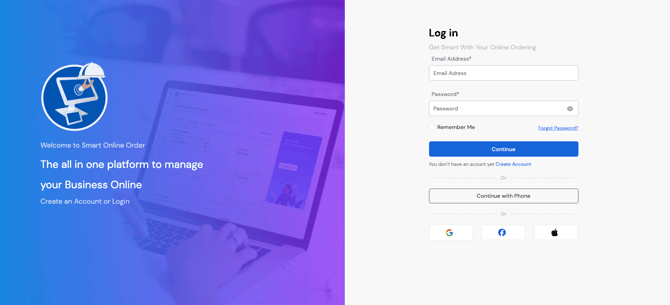
Step 1: Log in to the Loyalty Dashboard
- Log in to your account using the Loyalty Dashboard
http://v2.dashboard.smartonlineorder.com/auth/login
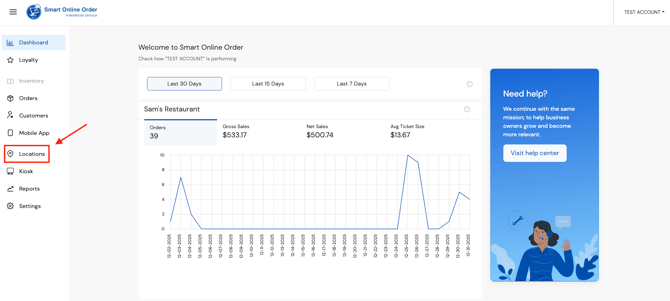
Step 2: Navigate to the Mobile App Section
- Find and click on the Mobile App tab
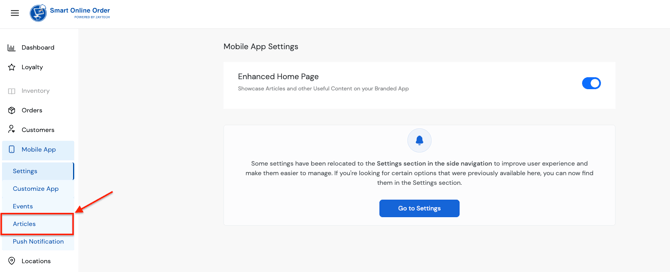
Step 3: Open Articles
- Under the Mobile App section, click on Articles
Step 4: Create a New Article
- Click Create

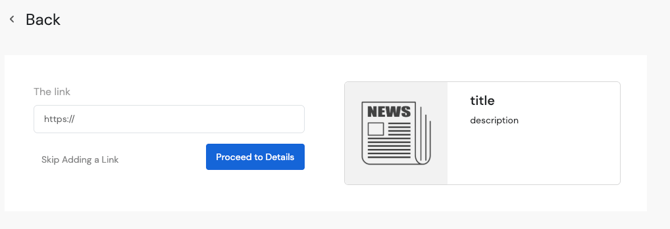
Step 5: Fill Out the Article InformationComplete the following fields:
- URL - Add a link to a webpage where your business hours are listed (for example, your own website)
- Title - Enter a title related to your business hours (e.g., “Our Business Hours”)
- Description - Manually enter your business hours in text format
- Image URL:
- Take a screenshot of your business hours
- Host the image on a publicly accessible webpage (such as your own website)
- Copy the image’s URL and paste it into the Image URL field
- This image will display your business hours visually in the article
- Call to Action (Optional) - Add a call-to-action button if desired
- Set as Featured (Optional) - Enable this option if you want the article to be more prominently displayed

Step 6: Finalize and publish the Article
- Once you verify the information is correct, click on Save to publish the article
While it is technically possible to show business hours using the Articles feature, this approach:
- Is not recommended
- Is not ideal for operational information
- Requires ongoing manual maintenance
For the most reliable and customer-friendly experience, always use the Popup Message feature to display business hours within Smart Online Order and your white-labeled Branded Mobile App.