![logo-2.png]](https://docs.zaytech.com/hs-fs/hubfs/logo-2.png?height=47&name=logo-2.png)
Disclaimer:
Holiday Hours DO NOT prevent customers from placing orders in advance for a future date or time. This feature is only intended to temporarily close the store on the specific holiday dates you create.
If your business accepts scheduled or future orders, customers will still be able to submit those orders before the holiday begins, even if the store is marked as closed on the holiday itself.
What Holiday Hours Do (and Do Not Do)
What Holiday Hours Do
-
Temporarily mark your store as closed on specific holiday dates
-
Prevent same day online orders during the holiday
-
Automatically resume normal business hours after the holiday
-
Allow holidays to be configured in advance
What Holiday Hours Do NOT Do
-
Do NOT block advance or scheduled orders
-
Do NOT disable future dated orders
-
Do NOT permanently modify your business hours
-
Do NOT affect orders placed prior to the holiday date
Steps to Access the Holiday Hours Settings
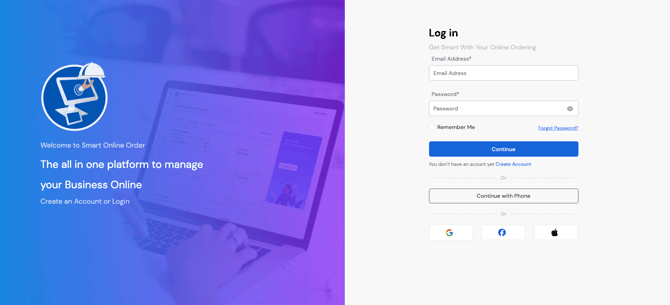
Step 1: Log in to the Loyalty Dashboard
Log in or create an account using the following link:
http://v2.dashboard.smartonlineorder.com/auth/login
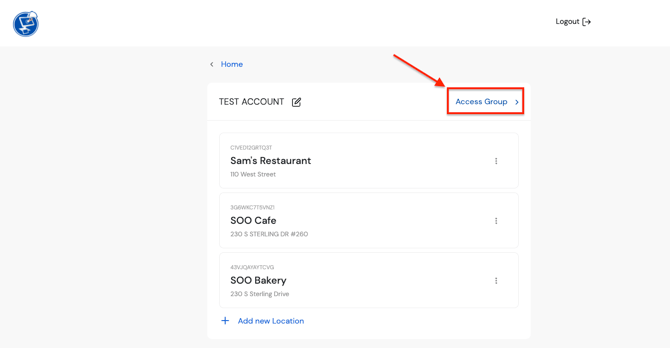
Step 2: Access the Correct Business Group
-
Click Access Group
-
If you manage multiple businesses, select the appropriate business you want to configure
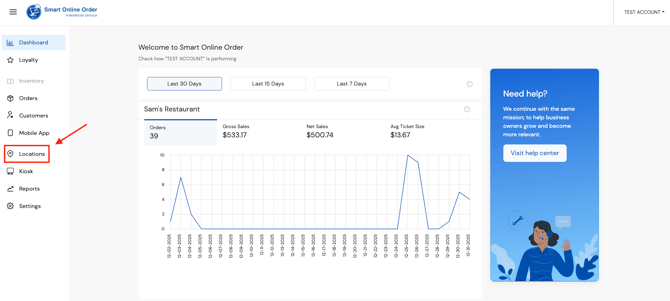
Step 3: Navigate to Locations
-
From the left-hand menu, select Locations
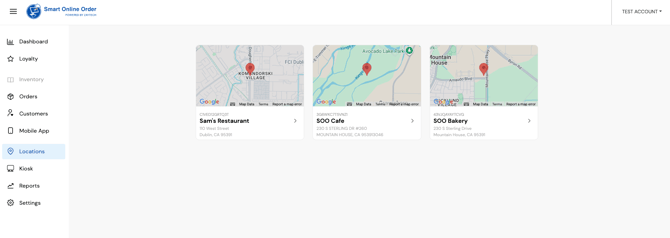
Step 4: Select the Business Location
-
Choose the specific location where you want to configure Holiday Hours
Step 5: Open Business Hours
-
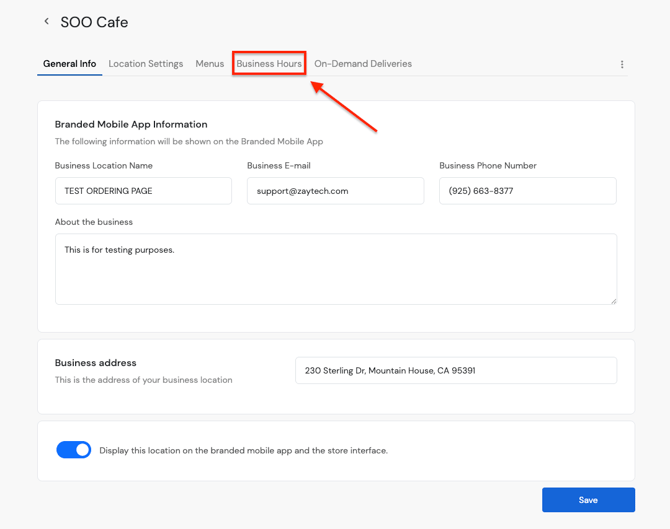
Select Business Hours from the top of the menu
Step 6: Locate the Holidays Section
-
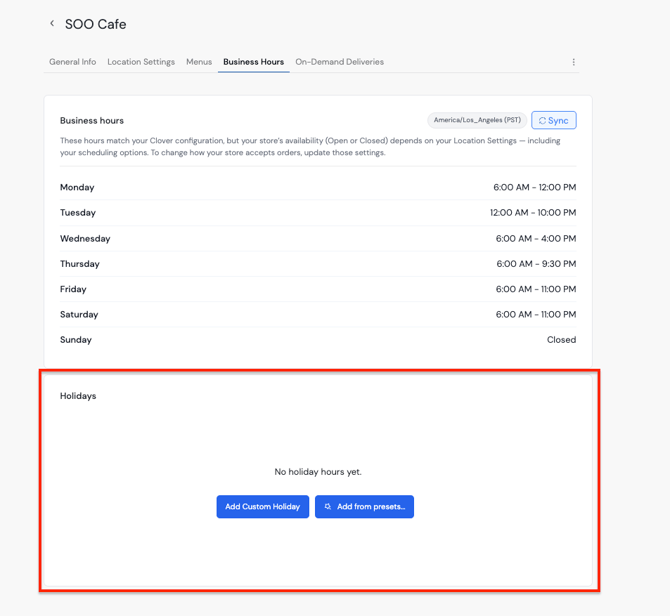
Scroll to find the Holidays section within Business Hours
-
From here, you can create and manage Holiday Hours in advance
Setting Up Holiday Hours
Within the section:
-
Add a new holiday or choose one of the preset holidays
-
Select/edit the date(s) the store should be closed
-
Save your changes
Once saved, Smart Online Order will automatically mark the store as closed on those holiday dates.
Reminder:
Even after a holiday is created, customers may still place advance orders before the holiday date. Holiday Hours only prevent orders during the holiday itself.