![logo-2.png]](https://docs.zaytech.com/hs-fs/hubfs/logo-2.png?height=47&name=logo-2.png)
What Is a Secret Menu and Why It Matters
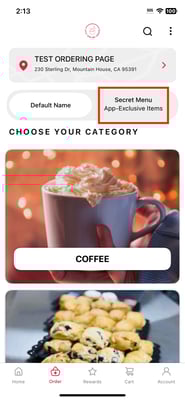
A Secret Menu (also referred to as an App Exclusive Menu) is a hidden or app-only menu that customers can only access through your branded mobile application. Secret menus are a proven strategy to:
-
Increase mobile app downloads
-
Drive repeat orders from loyal customers
-
Create a sense of exclusivity and urgency
-
Shift customers away from third-party platforms and into your own ecosystem
Major brands like Domino’s Pizza have successfully used app-exclusive items to incentivize customers to download their app and order directly.
How Domino’s Uses a Secret App Menu
Domino’s frequently leverages app-only deals and hidden offers that are not available on third-party marketplaces. These offers:
-
Encourage customers to download the Domino’s app
-
Reward loyal users with exclusive pricing or products
-
Increase direct digital sales while reducing third-party commission fees
This same strategy can be applied to your restaurant using your branded mobile app.
Important Notes Before You Start
Before creating your Secret Menu, please keep the following best practices in mind:
-
Secret Menu items should not be visible on third-party delivery platforms
-
Once the Secret Menu is live in your app, you must remove those items from other platforms to maintain exclusivity
-
Promote the Secret Menu through in-store signage, social media, and email marketing
Step-by-Step: How to Create a Secret Menu in the Loyalty Dashboard
Below is a detailed walkthrough on how to create a Secret Menu or App Exclusive Menu using the Loyalty Dashboard.
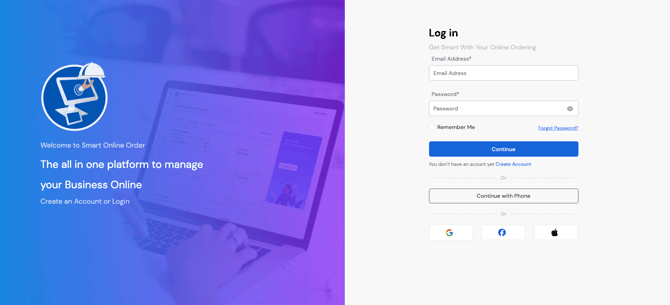
Step 1: Log In to the Loyalty Dashboard
Log in to your Loyalty Dashboard using your administrator credentials.
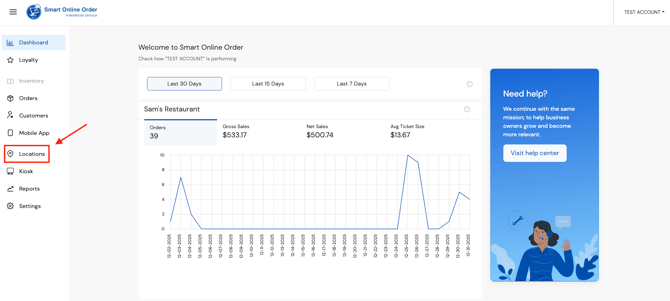
Step 2: Click on the “Locations” Tab
Once logged in, navigate to the Locations tab in the main menu.
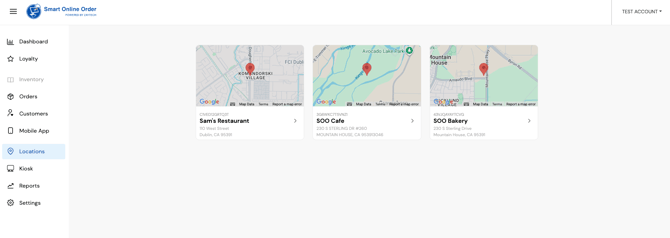
Step 3: Select the Correct Location
If you manage multiple locations, select the location where the Secret Menu should appear.
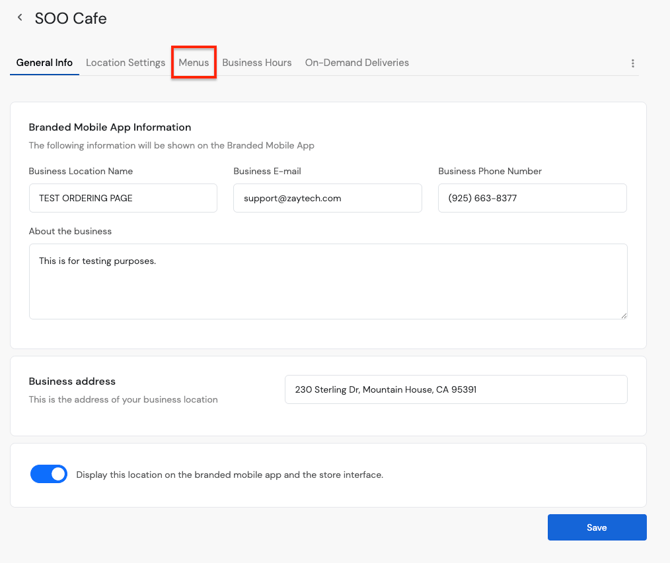
Step 4: Click on the “Menus” Tab
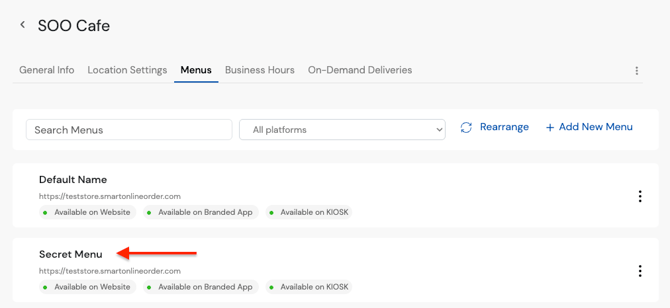
Within the selected location, click on the Menus tab to manage app menus.
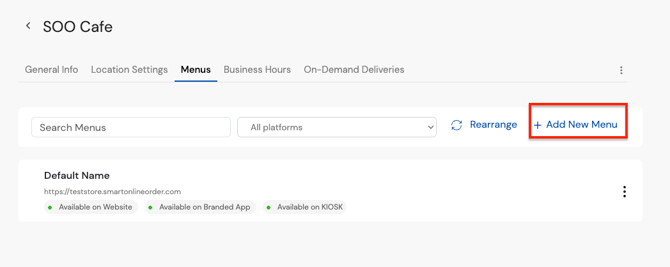
Step 5: Click “Add New Menu”
Select Add New Menu to begin creating a new menu specifically for app users.
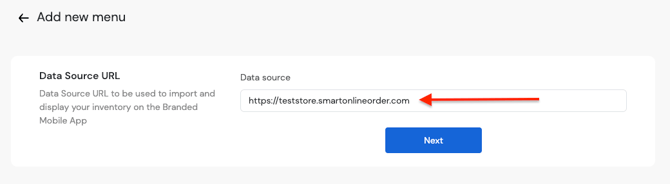
Step 6: Insert the Data Source
Insert the data source URL to pull menu items from. In most cases, you will want to select your already existing menu page that is currently attached to your app and online ordering setup (for example, your primary Smart Online Order menu).
This is typically the same menu shown in the previous step or referenced in the last image, ensuring consistency between your main menu and the new Secret Menu.
Once the correct menu page is selected, click Next to continue.
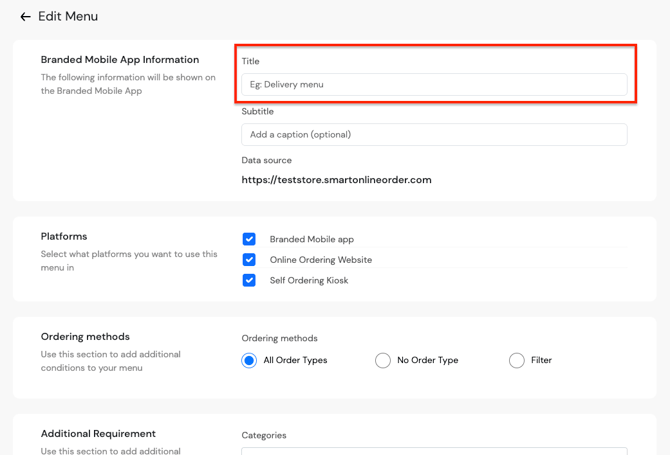
Step 7: Rename the Menu Title
Change the menu title to:
-
“Secret Menu” or
-
“App Exclusives”
This title will be visible inside your mobile app.
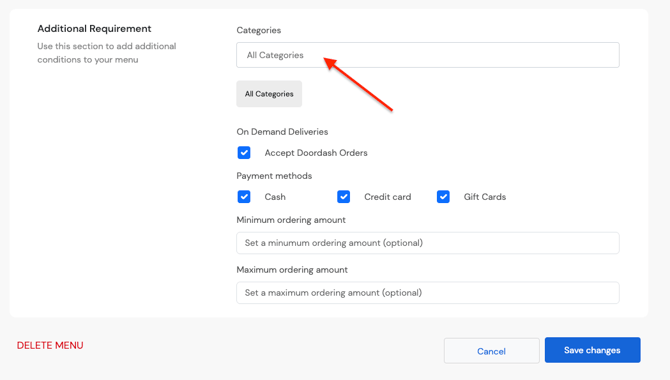
Step 8: Add Categories to the Secret Menu
Select the category or categories that should appear in the Secret Menu. These categories should contain exclusive items, app-only deals, or limited-time offerings that are not available on other platforms.
Once the appropriate categories are selected, click Save to publish the menu.
Step 9: Confirm the Secret Menu Is Live
Your Secret Menu should now appear in your branded mobile app and be accessible only to app users.
Best Practices for Promoting Your Secret Menu
To maximize app orders and downloads:
-
Add in-store signage promoting “App-Only Items”
-
Share the Secret Menu on social media with a download link
-
Train staff to mention app exclusives to customers
-
Use push notifications to highlight Secret Menu items
Need Help or Want to Learn More?
If you’d like hands-on guidance or have questions, our support team is ready to assist.
Ways to reach us:
-
Phone: 925-414-3848
-
Email: support@zaytech.com