![logo-2.png]](https://docs.zaytech.com/hs-fs/hubfs/logo-2.png?height=47&name=logo-2.png)
Prerequisites
-
Access to the Loyalty Dashboard
-
Appropriate permissions to create and update articles
Step-by-Step Instructions
Step 1: Log In to the Loyalty Dashboard
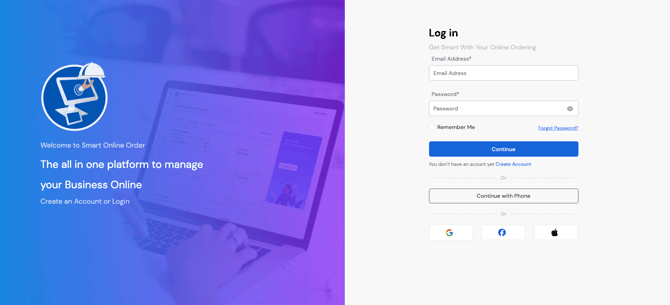
Log in to the Loyalty Dashboard using your authorized credentials.
http://v2.dashboard.smartonlineorder.com/auth/login
Step 2: Navigate to the Mobile App Tab
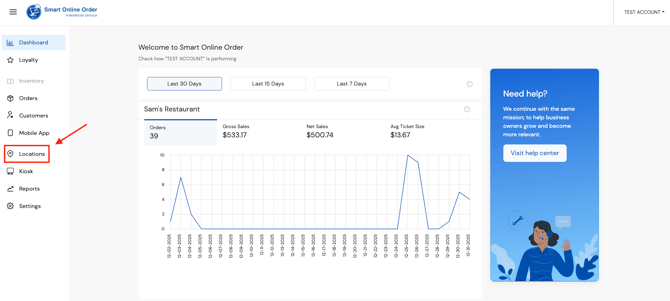
From the main dashboard navigation, locate and click on the Mobile App tab.
Step 3: Open the Articles Section
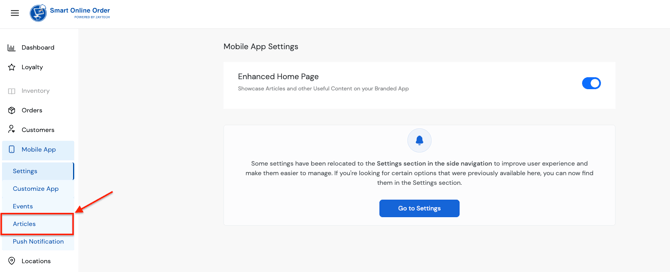
Within the Mobile App tab, find and click on Articles to view existing articles.
Step 4: Create a New Article
Click on the Create button to open the article creation form.

Step 5: Complete the Article Details
Fill out the required and optional fields as needed:
-
URL Link: Add a URL link if applicable, or skip this field.
-
Title: Enter the article title.
-
Description: Provide the article content or summary.
-
Image URL (Optional): Add an image URL to display a visual with the article.
-
Call to Action (Optional): Define a call-to-action for users (e.g., “Learn More,” “Shop Now”).
-
Set as Featured (Optional): Enable this option if the article should be highlighted.
Step 6: Finalize and Publish
Once all information is entered, review the details and click Update to save and publish the article.
Result
The article will now be available in the Mobile App and visible to users based on its configuration.