![logo-2.png]](https://docs.zaytech.com/hs-fs/hubfs/logo-2.png?height=47&name=logo-2.png)
Prerequisites
- Access to the Loyalty Dashboard
- Appropriate permissions to create and update articles
Step-by-Step Instructions
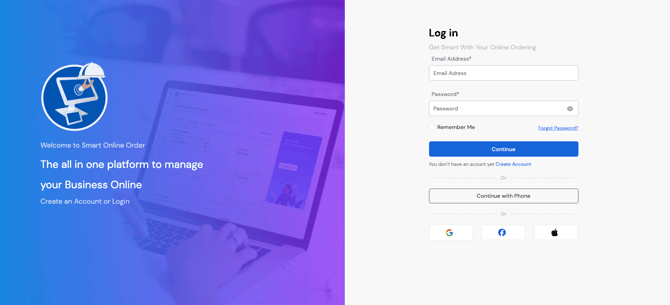
Step 1: Log In to the Loyalty Dashboard
Log in to the Loyalty Dashboard using your authorized credentials.
http://v2.dashboard.smartonlineorder.com/auth/login
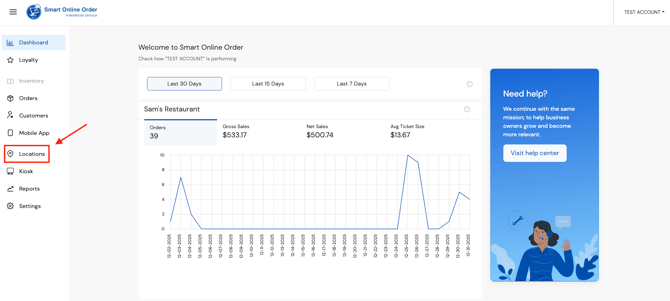
Step 2: Navigate to the Mobile App Tab
From the main dashboard navigation, locate and click on the Mobile App tab.
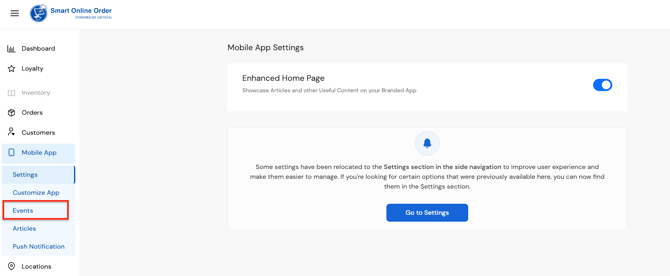
Step 3: Open the Articles Section
Within the Mobile App tab, click on “Events” to view existing events and manage new ones.
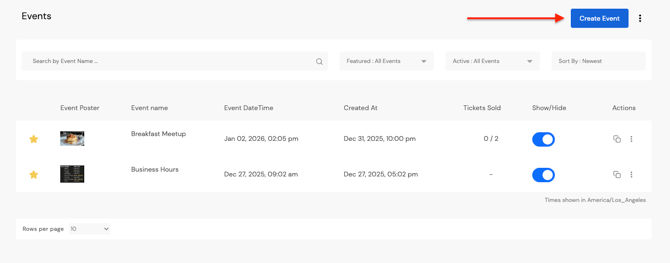
Step 4: Create a New Event
Click “Create Event” to start the process of adding a new event.
Step 5: Complete the Event Information
Fill out the required and optional fields as needed:
- Title: Enter the name of the event.
- Description: Provide details about the event.
- Date/Time: Set the event date and time.
- Upload Image: Add an image to represent the event.
- Call to Action (optional): Include a button or link for user engagement.
- Online Ticket Sales (if applicable): Enable and configure ticket sales if relevant.
- Set as Featured (optional): Mark the event as featured to highlight it.
Step 6: Finalize and Publish
- Review the information entered.
- Click “Update” to save and publish the event.
Tips:
- Ensure all required fields are completed before clicking Update.
- High-quality images improve engagement for featured events.
- Use the Call to Action field to drive user interaction, such as registering or purchasing tickets.