![logo-2.png]](https://docs.zaytech.com/hs-fs/hubfs/logo-2.png?height=47&name=logo-2.png)
This article explains how the Clover Convenience Fee is used within the Smart Online Order system. The Convenience Fee is configured directly in Clover and is displayed in Smart Online Order for customer transparency on online payments only.
Smart Online Order does not calculate, modify, or control this fee. It simply displays the value that is set in your Clover Ecommerce Payments settings.
This article covers:
-
What the Convenience Fee is and how Smart Online Order uses it
-
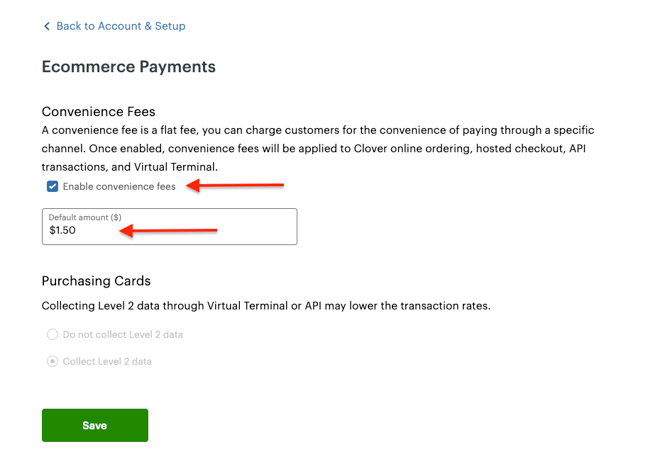
How to enable the Convenience Fee in Clover
-
Where to verify the fee inside Smart Online Order
-
How the fee appears during checkout and on receipts
-
How multiple fees display on receipts
What Is a Convenience Fee?
A Convenience Fee is an additional charge applied to online or non-traditional payment channels (e.g., web or mobile ordering). It must be:
-
Clearly disclosed to the customer before payment is completed
-
Consistently applied to the eligible transaction type
-
Itemized separately on the receipt
When enabled through Clover Ecommerce Payments, the fee is automatically calculated and passed through to connected online ordering platforms such as Smart Online Order.
Step-by-Step: Enabling Convenience Fees in Clover
Step 1: Log in to Clover
Log into your Clover account at clover.com using the account owner or admin credentials.
Step 2: Open Account Settings
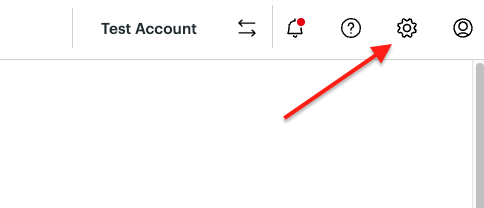
Click the Settings wheel (⚙️) in the top-right corner of the Clover dashboard.
Step 3: Access All Settings
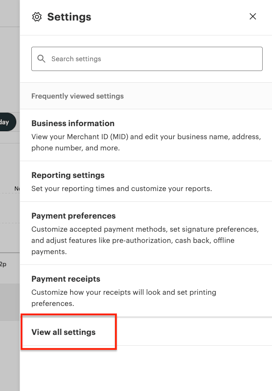
From the dropdown or settings menu, click All Settings.
Step 4: Locate and Open Ecommerce Payments
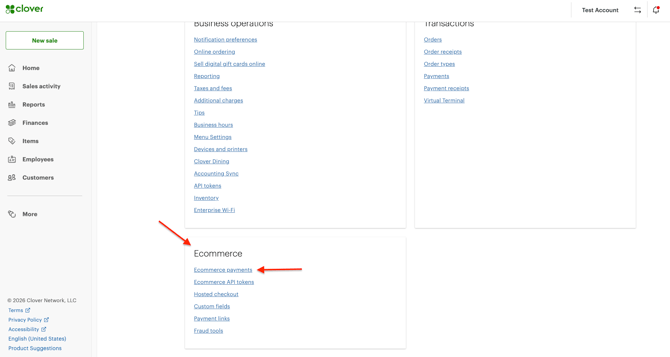
Scroll to the bottom of the settings page, locate the Ecommerce card, and click Ecommerce Payments.
Image 4: Ecommerce Card and Ecommerce Payments (Screenshot showing the Ecommerce card and the Ecommerce Payments option selected)
Step 5: Enable Convenience Fees
Find the Convenience Fees section.
-
Toggle the setting ON
-
Review the fee details
-
Click Save

Verifying the Fee in Smart Online Order
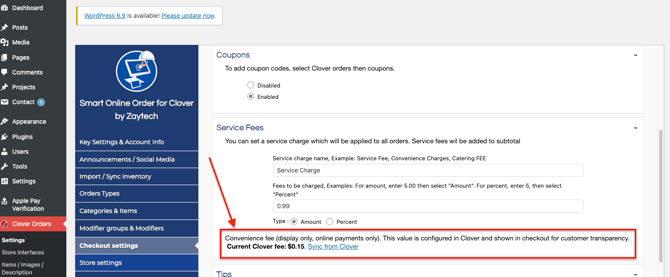
Once enabled in Clover, the Convenience Fee is display-only inside Smart Online Order. This means Smart Online Order does not calculate or control the fee; it simply surfaces the value configured in Clover for customer transparency on online payments only.
Step 6: Open Smart Online Order Plugin Settings
From your Clover dashboard, open the Smart Online Order plugin.
Step 7: Navigate to Service Fees
Go to: Clover Orders → Settings → Checkout Settings → Service Fees
Here, you are verifying that the Convenience Fee being displayed matches what is configured in Clover Ecommerce Payments. Any changes must be made in Clover, not within Smart Online Order.
How the Convenience Fee Appears to Customers
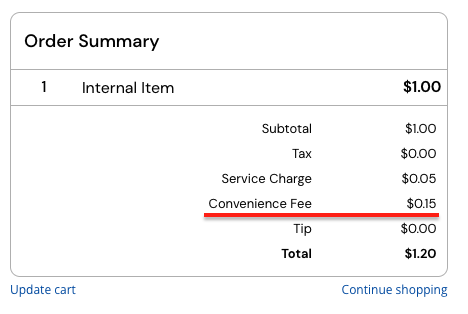
On the Checkout Page
During checkout, customers will see the Convenience Fee listed as a separate line item before placing their order. This ensures full transparency and compliance.
On Printed and Digital Receipts
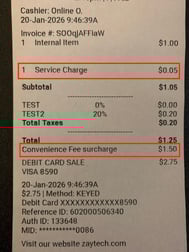
The Convenience Fee appears as its own line item on receipts, separate from tax and subtotal.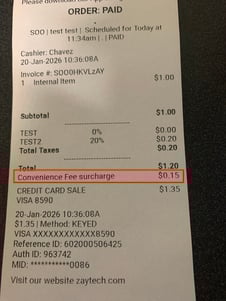
What Multiple Fees Look Like on a Receipt
In some configurations, a receipt may show more than one fee (for example, a Service Fee and a Convenience Fee). Each fee is listed independently for clarity.
Example Receipt Breakdown:
-
Subtotal
-
Service Fee
-
Convenience Fee
-
Tax
-
Total
Key Notes & Best Practices
-
The Convenience Fee is configured in Clover, not in Smart Online Order
-
Smart Online Order displays the fee for online payments only
-
The fee is display-only inside Smart Online Order and cannot be edited there
-
Always ensure the fee is clearly disclosed before checkout
-
Verify the fee after Clover updates or setting changes